Inbound Request Page for Sales Representative
Enterprise/SaaS UX/UI Design 4 Months

OVERVIEW
Jifflenow is a sales advancement platform that helps companies manage event and trade show calendars. This project allows customers to request meetings based on specific engagement types and topics while choosing convenient dates and times. It enables users to directly schedule meetings with experts through virtual events and webinars. The feature enhances the user experience by offering customizable forms, time zones, and available time slots.
MY ROLE
As a UX designer, I had to do user research, and competitive analysis, create user flows and brainstorm with stakeholders and engineers involved to understand product architecture and impact areas. I also created high-fidelity mocks and development-ready designs. During the development phase,
I worked closely with the front-end team, providing support until the project's completion.
PROBLEM
-
How can we enable a Customer to create a meeting request?
-
How to provide the Customer to choose the time of the meeting as per their availability?
-
How to make sure that one right SME (subject matter expert) attends the meeting?
-
How to save the time of the sales representative by avoiding frequent calls/emails from the customers to edit, and delete requests?
-
How to provide engagements to select and show mapped users' calendars and their availability upfront to make a choice of their desired time?
User scenarios
Case 1: Richard Clark, a sales executive, is part of an event and has invited a few external contacts for an executive meeting. To efficiently utilise his time at the event, he decides to send an email to all the contacts. In the email, he writes about the event and extends an invitation. Along with the invite, he also adds a link in the email for scheduling a meeting with him using a simple guided form.
Case 2: Richard attended a digital event. He met Anthony (Customer) at the event. To ensure that the communication continued after the event, Richard wants to send a follow-up email to Anthony with a link where they could click and request a meeting with him post-event.
Understanding Users

Richard is a sales Representative
Pain points
-
Request meetings for customers asking them through calls/emails
-
Changes in requested meetings and status and modifying it frequently
-
Checking with customers back and forth for meeting updates
"I want to schedule as many meetings as possible with clients to make deals with them to reach my targets."
"I want to easily find and invite the right SME to the meeting with clients to make a deal successful"
Proposed Flow

Visual Design for Admin
The meeting Manager sets up an Inbound request page for customers.
A default basic form for the admin to retrieve prospect details by asking a set of questions, while giving sales representatives the freedom to modify, add, and delete fields as needed.


Creating IRP flow
Once the customising engagement type is complete, the admin must create an inbound request page by selecting one or more specific engagement types for external attendees and sending them the link to request a meeting.

Setup IRP
A list for an admin to check the inbound requests he created for the different prospects where he can copy code to embed in customers website or he can share the link to them through the mail or also take QR code and show it to the customers than and there to book a meeting on the event

Visual Design for Customers
Step 1
This flow is for the customers who get the Inbound request page link from Meeting managers to request a meeting.
Getting the information about the prospect who is requesting the meeting,
this will help the admin to get the data and contact them shortly.

Step 2
Focusing on selecting Engagement types and Topics to discuss. By doing this, we can easily connect with the right subject matter experts who are mapped to the selected topic or engagement type. This helps the admin to save time that would otherwise be spent looking for subject matter experts to add to the meeting.

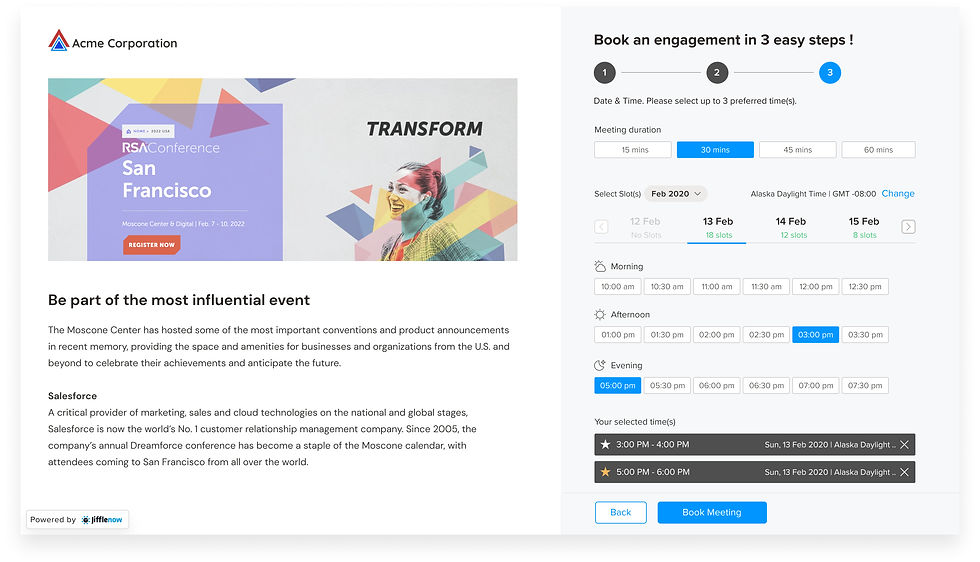
Step 3
Users will be able to choose the date and time for their engagement type and topic. They will also have the option to select multiple dates and times for the meeting. From the options provided, they can choose one as a priority, giving the admin an idea of which option is most suitable.
Review page
Before submitting a meeting request, it's helpful to review the selected details to ensure that nothing important is missed. The edit button is available on each tile, allowing users to make changes as needed. Even after submitting the request, users can still edit the details from the notification email.

Success scenario
After submitting the request successfully, the customer will receive meeting information automatically. In case the customer wishes to book another meeting, they can do so by clicking on the "Create New Meeting" button.

Error scenario
Incorporating amusing illustrations to deal with situations where errors occur can be beneficial in preventing feelings of frustration.
